MOBILE APP · RESIDENT GUIDE
Welcome to
your community.
A step-by-step guide to MyEstateLinkGh, with screenshots from the current mobile app. Choose a topic below and find your way around.
01. Connect your community
- Get the community code or QR and app installation details from management.
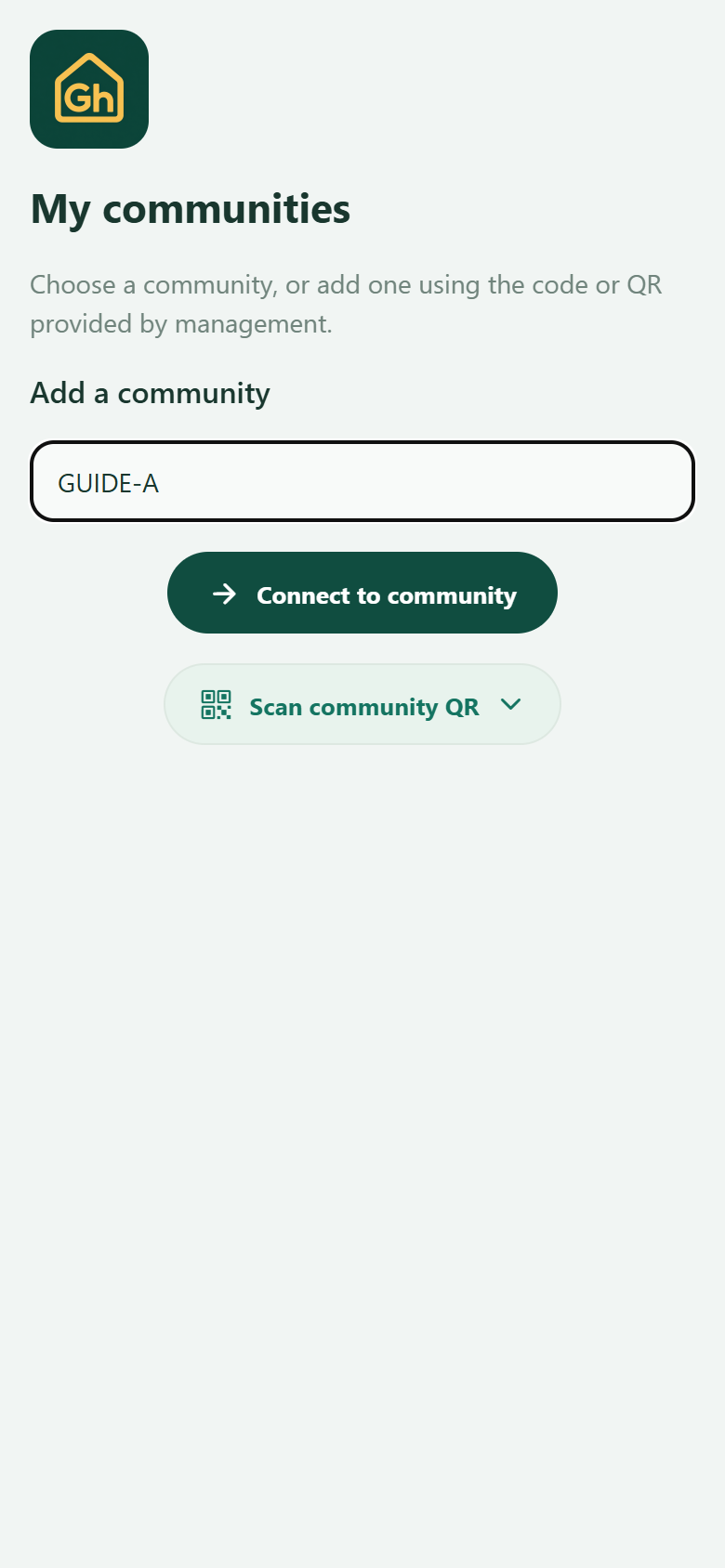
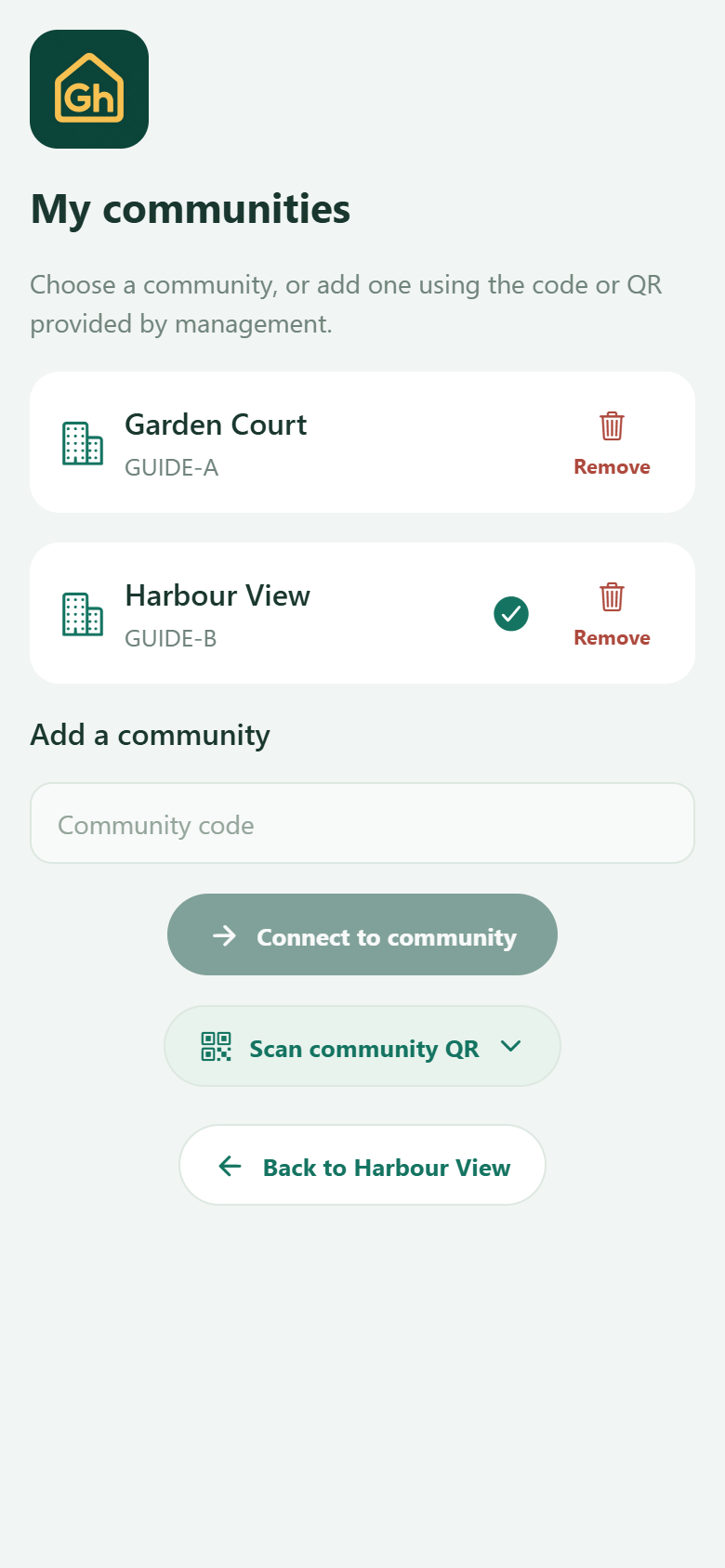
- Open My communities in the app. Add the community using its code or scan its connection QR.
- Check the community name, connect and sign in with the account management provides.
A community code connects the app to the right community. Your account is separate. A community connection QR is also different from a visitor pass.
 Enlarge screenshot
 Enlarge screenshot
02. Sign in & look after your account
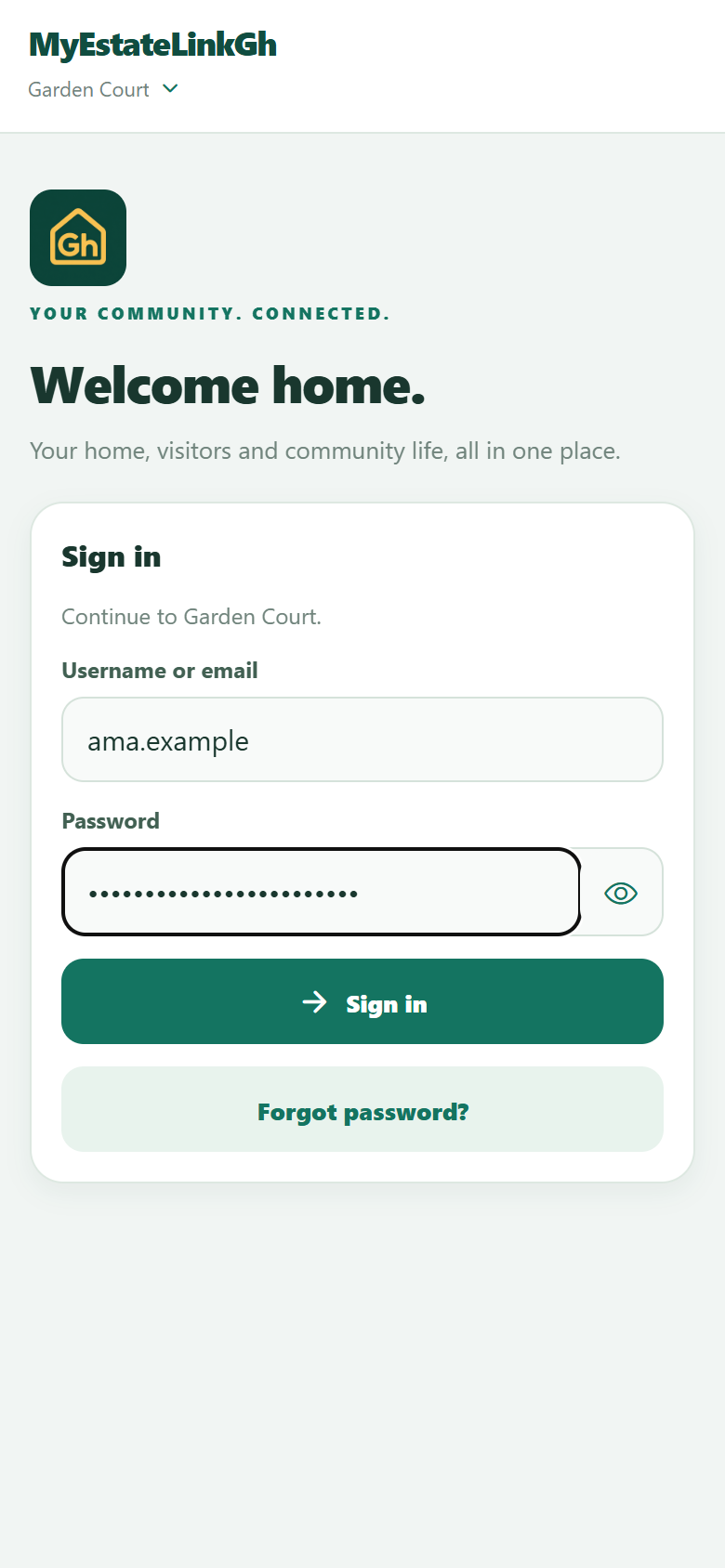
Use your username or registered email and password. If you’re given a temporary password, you’ll be asked to change it on your first sign-in. Choose at least six characters and keep the password private.
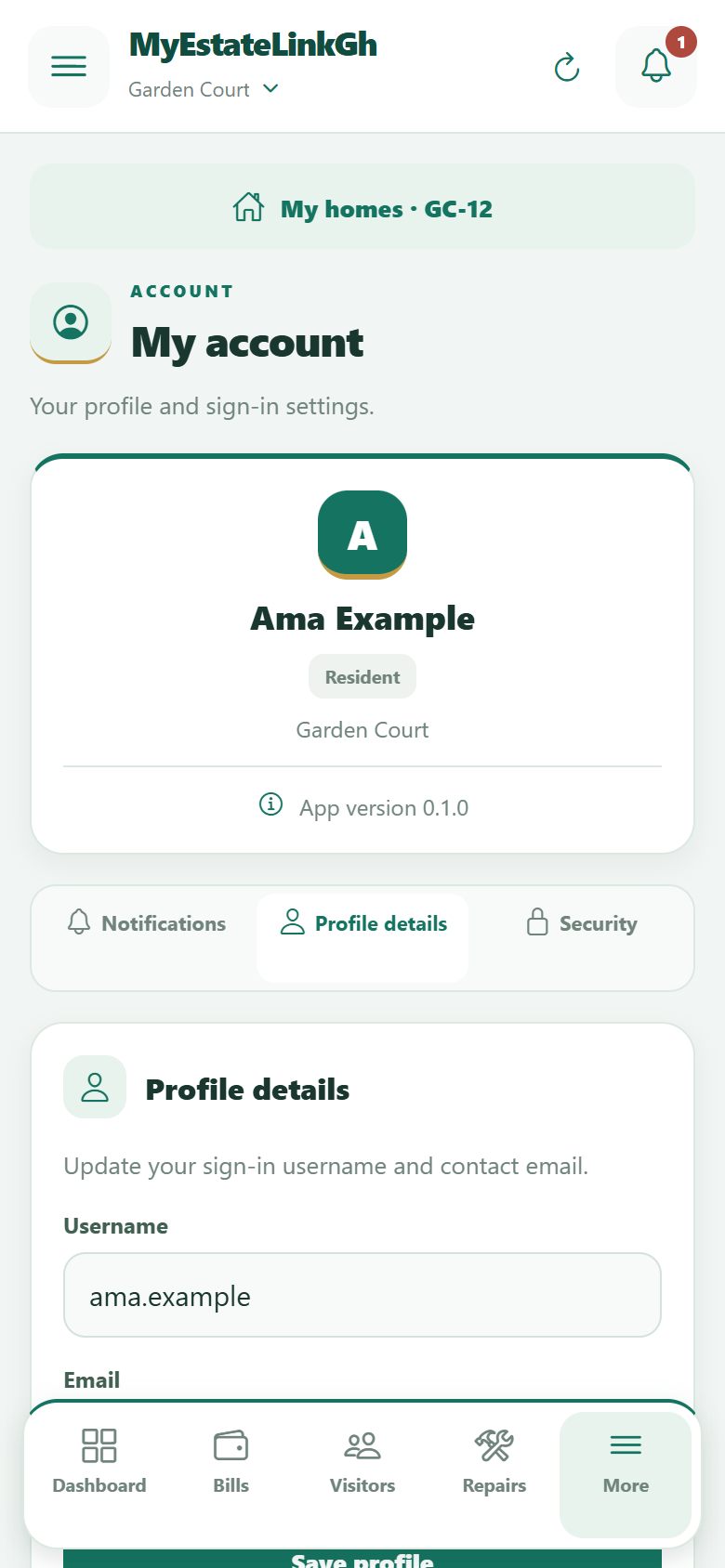
Under My account, review your profile, update your username or email, change your password and check this phone’s notification settings. A registered email helps with password recovery.
If you forget your password, use Forgot password? on the sign-in screen. Contact management if you need help updating your registered details.
 Enlarge screenshot
03. The right community. The right home.
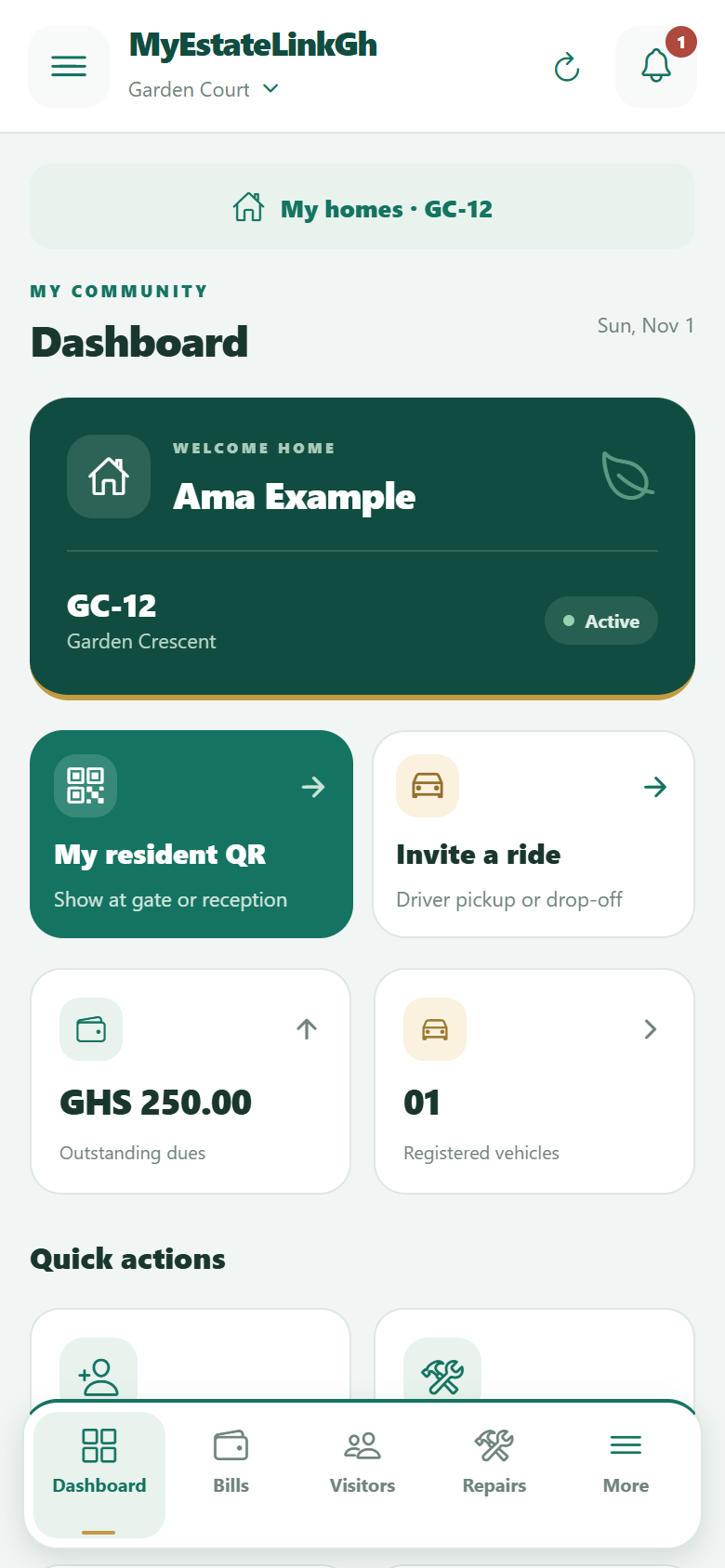
Use the community selector at the top or My communities in the drawer to switch participating communities. Sign in with the account for each community.
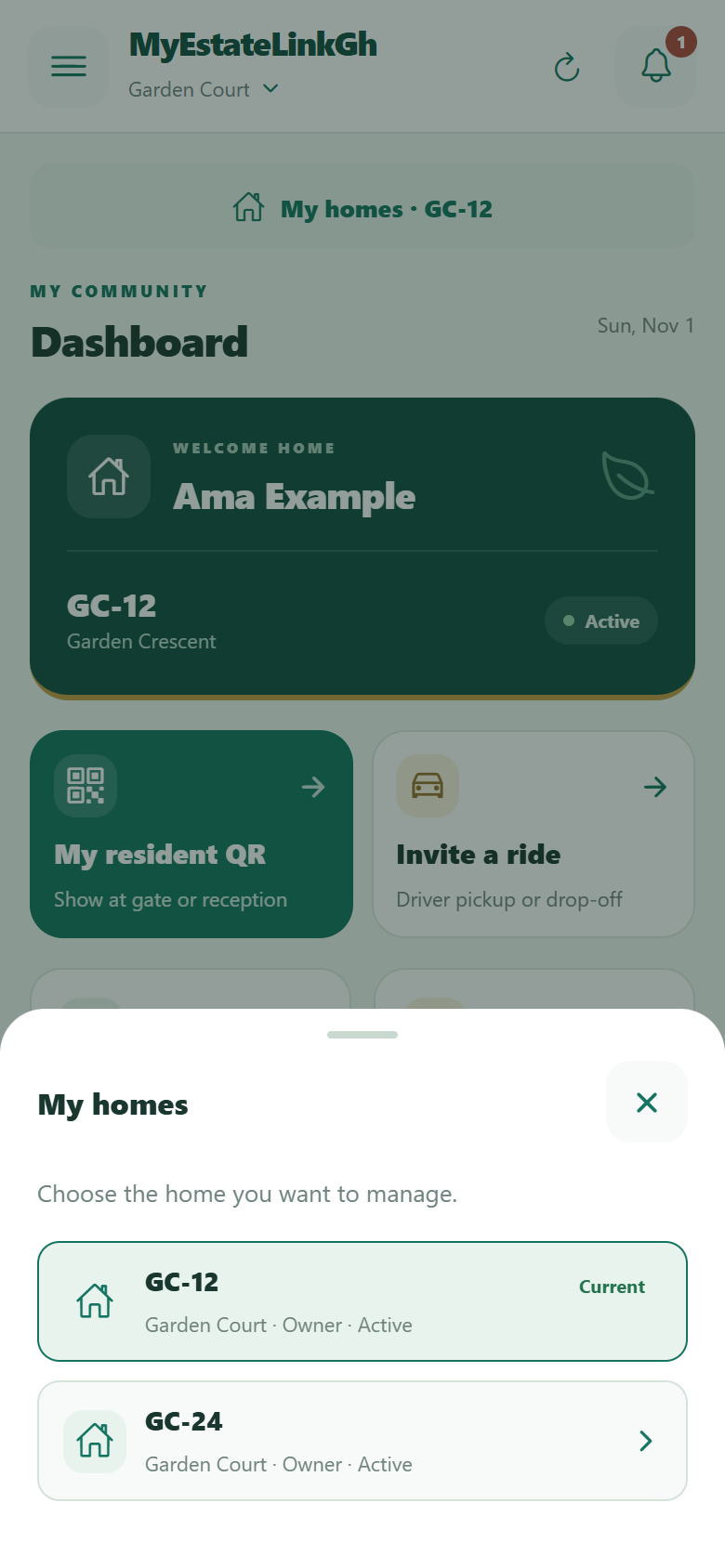
If management has linked multiple properties to your account within one community, use My homes to choose one. Check the selected home before creating an invitation, reporting an issue or paying a bill.
Your homes keep their own bills, invitations, requests and access records. An action for one home does not apply to all your properties.
 Enlarge screenshot
 Enlarge screenshot
 Enlarge screenshot
04. Expecting someone?
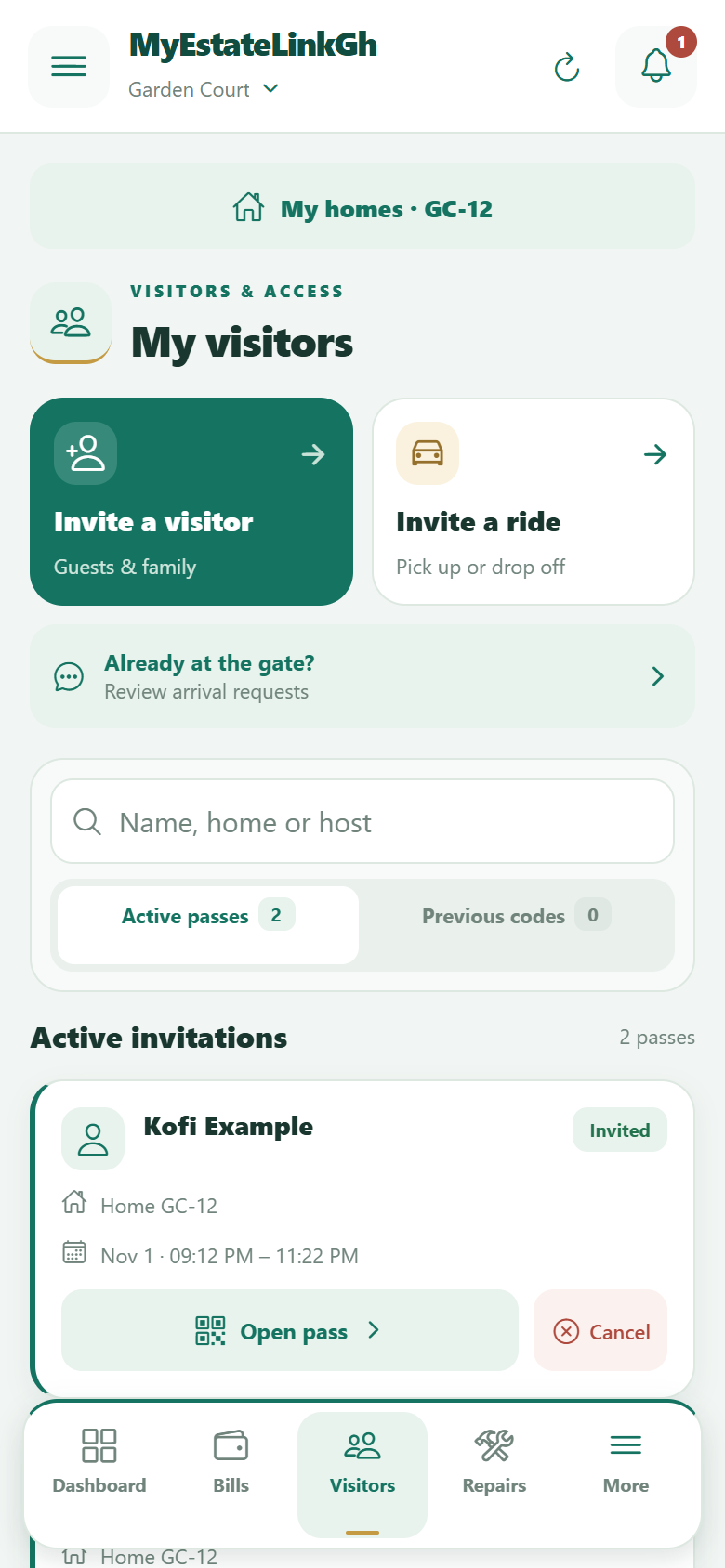
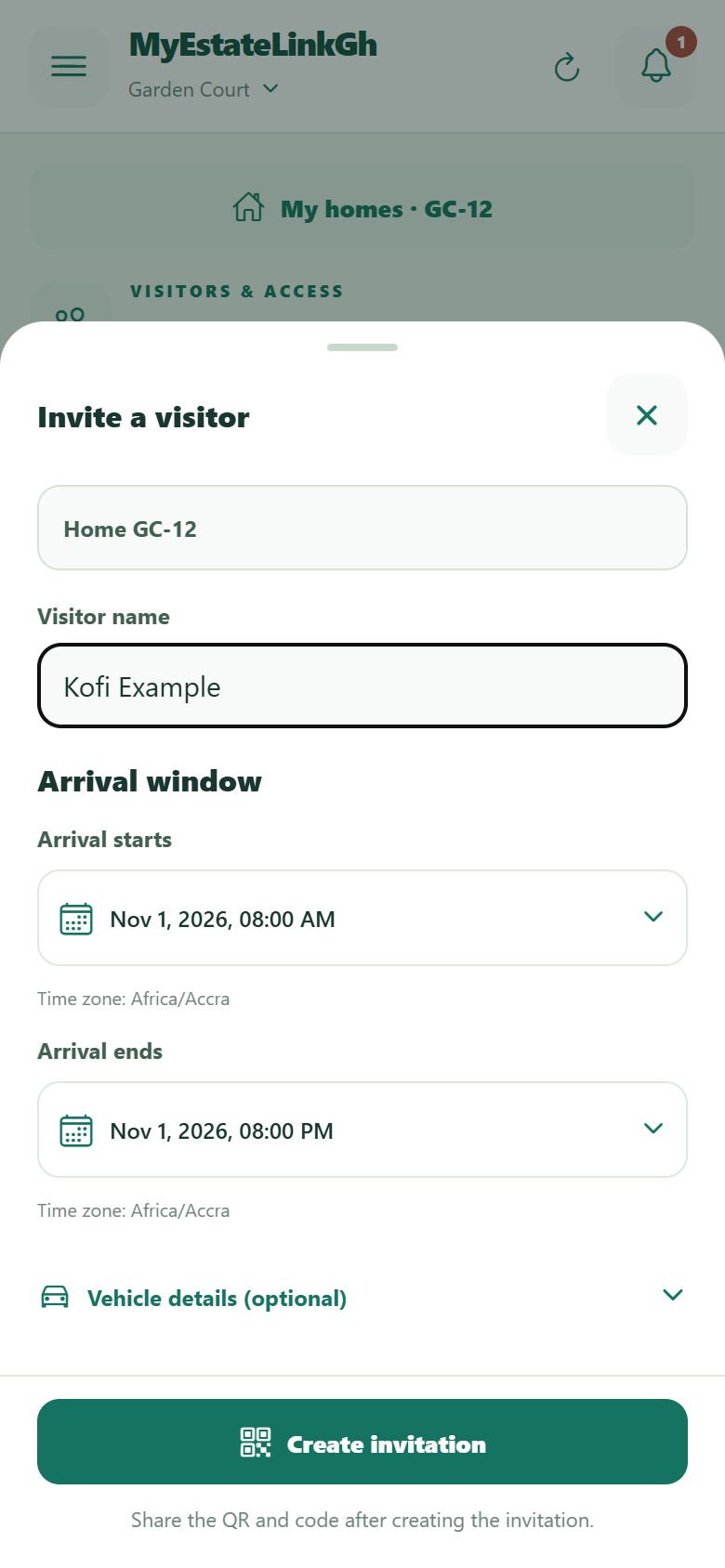
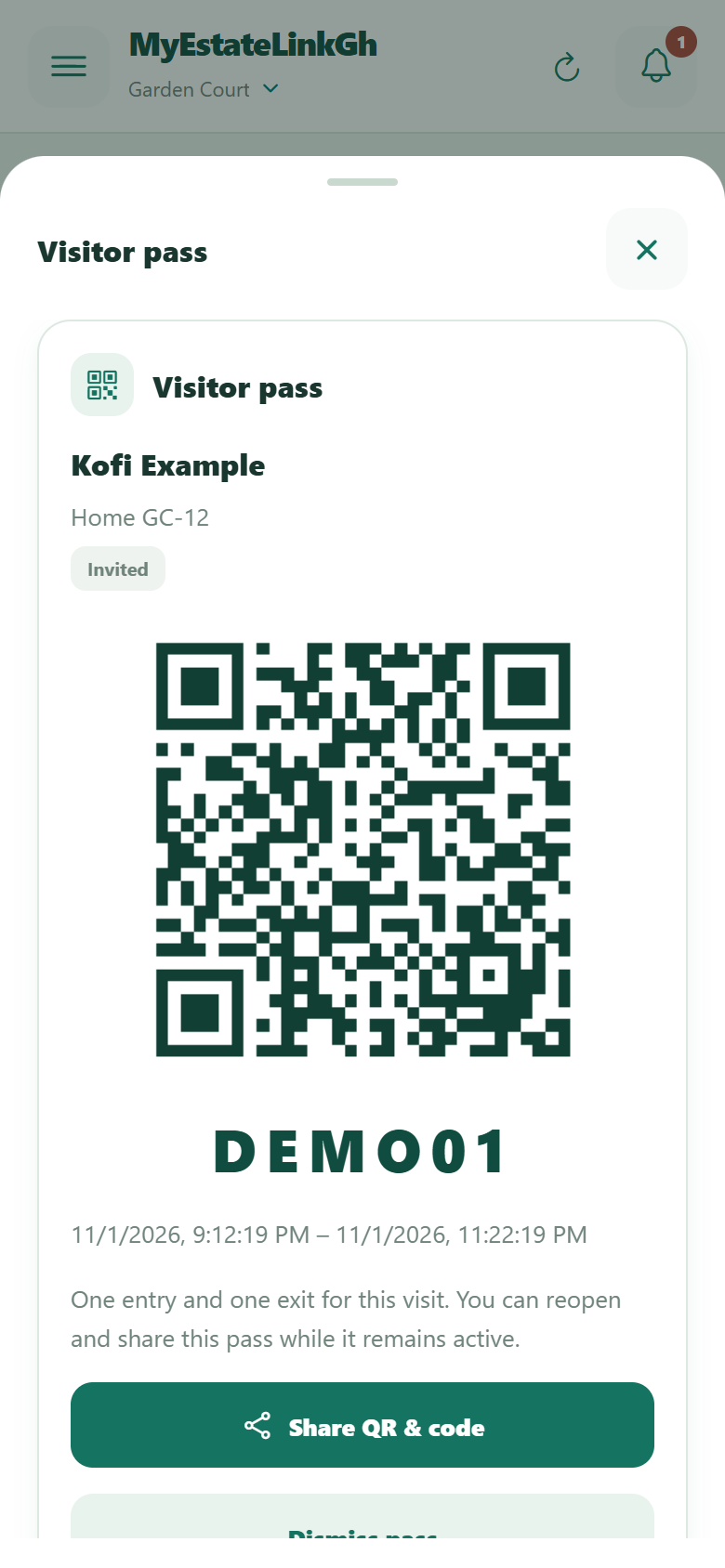
Open Visitors and choose Invite a visitor. Add their name and arrival window, then create the invitation. Share the visitor pass image with its QR and six-character code.
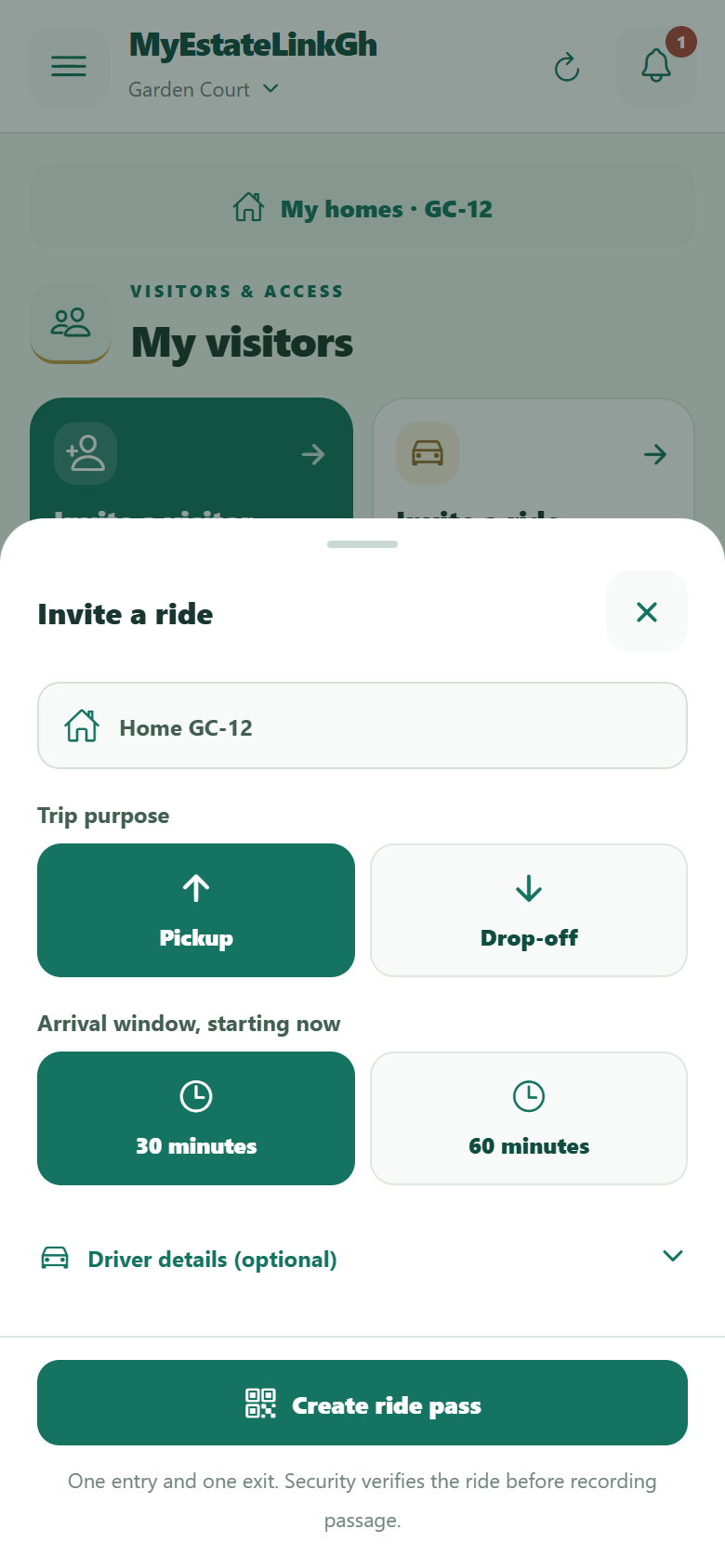
For a driver, choose Invite a ride and pick pickup or drop-off. Driver and vehicle details can be added when known. Ride passes have a shorter arrival window.
You can reopen eligible active invitations to share them again, or view previous codes. Cancel invitations you no longer need. A visit allows one recorded entry and one recorded exit.
 Enlarge screenshot
 Enlarge screenshot
 Enlarge screenshot
 Enlarge screenshot
05. Your QR is personal
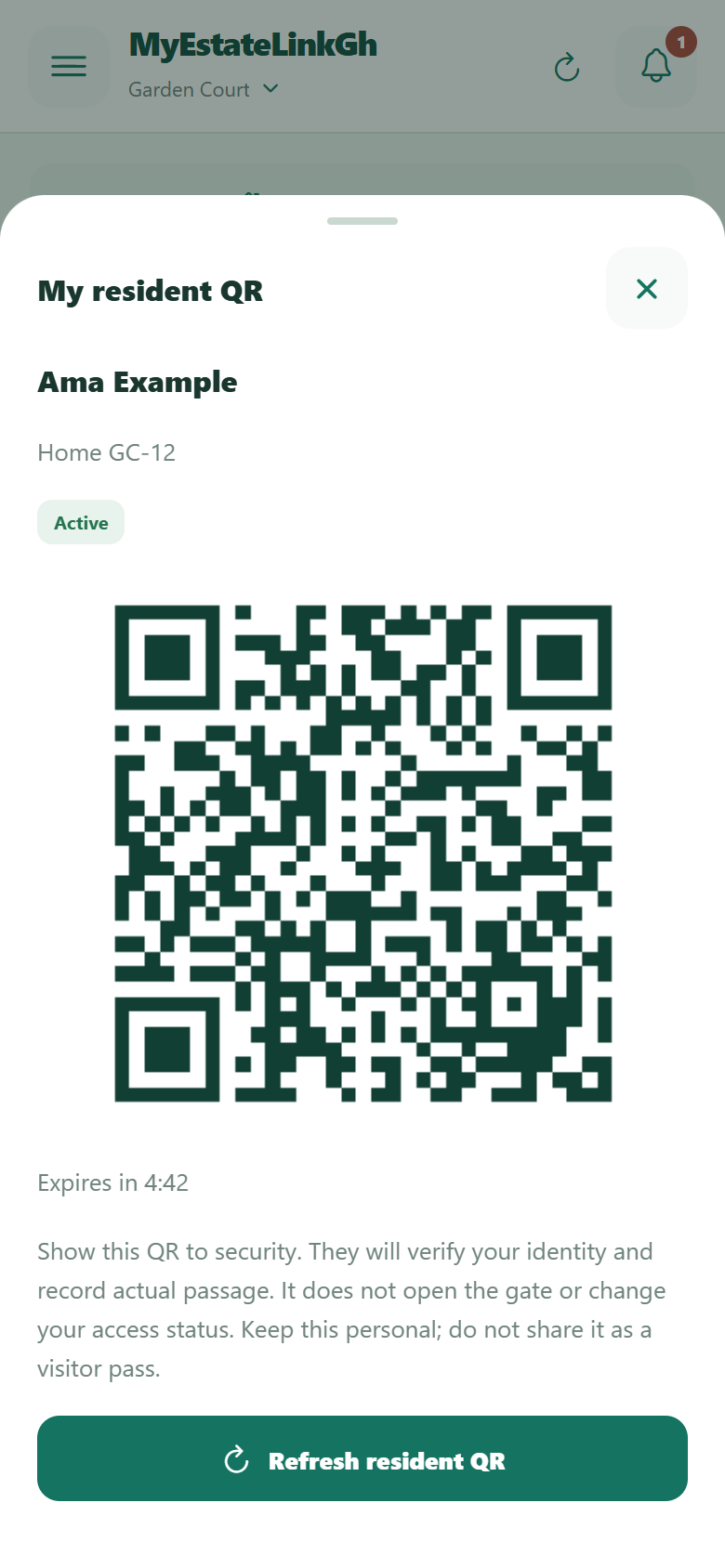
Where your community offers resident QR checks, open My resident QR from the dashboard. Show the current QR to security or reception if asked. It expires shortly, so use Refresh resident QR if needed.
This is for checking your identity as a resident. Keep it personal and create a visitor invitation for someone else. Scanning it does not open a gate or change your access status; authorised staff verify and record actual passage.
 Enlarge screenshot
06. When someone arrives without a pass
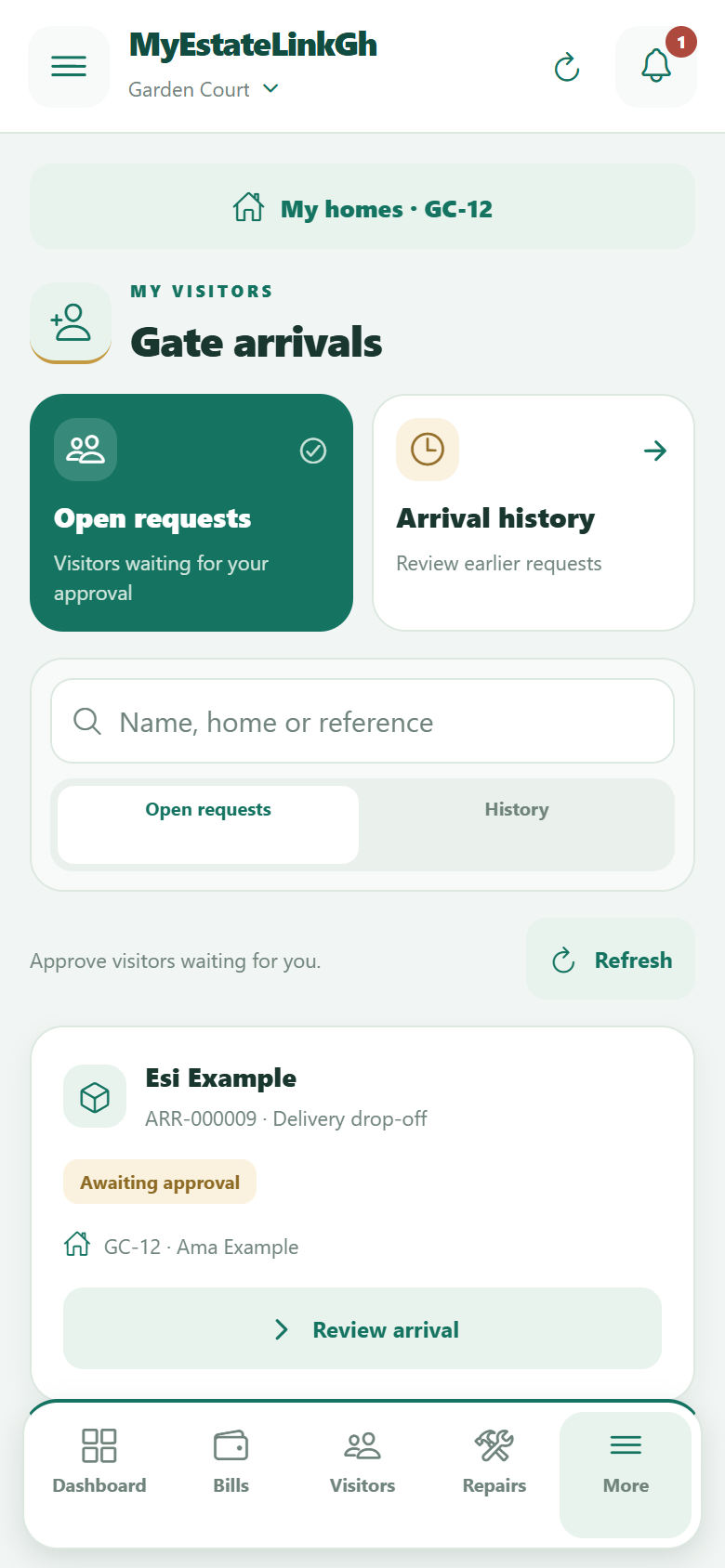
Security or reception can register an arrival request for your home. In Gate arrivals, check who is waiting and approve or decline the request.
Approval tells the desk that the visitor is expected. Security or reception records their actual entry and exit. If you can’t use the app, speak with the desk about the community’s approval process.
 Enlarge screenshot
07. Give an issue a place to get fixed
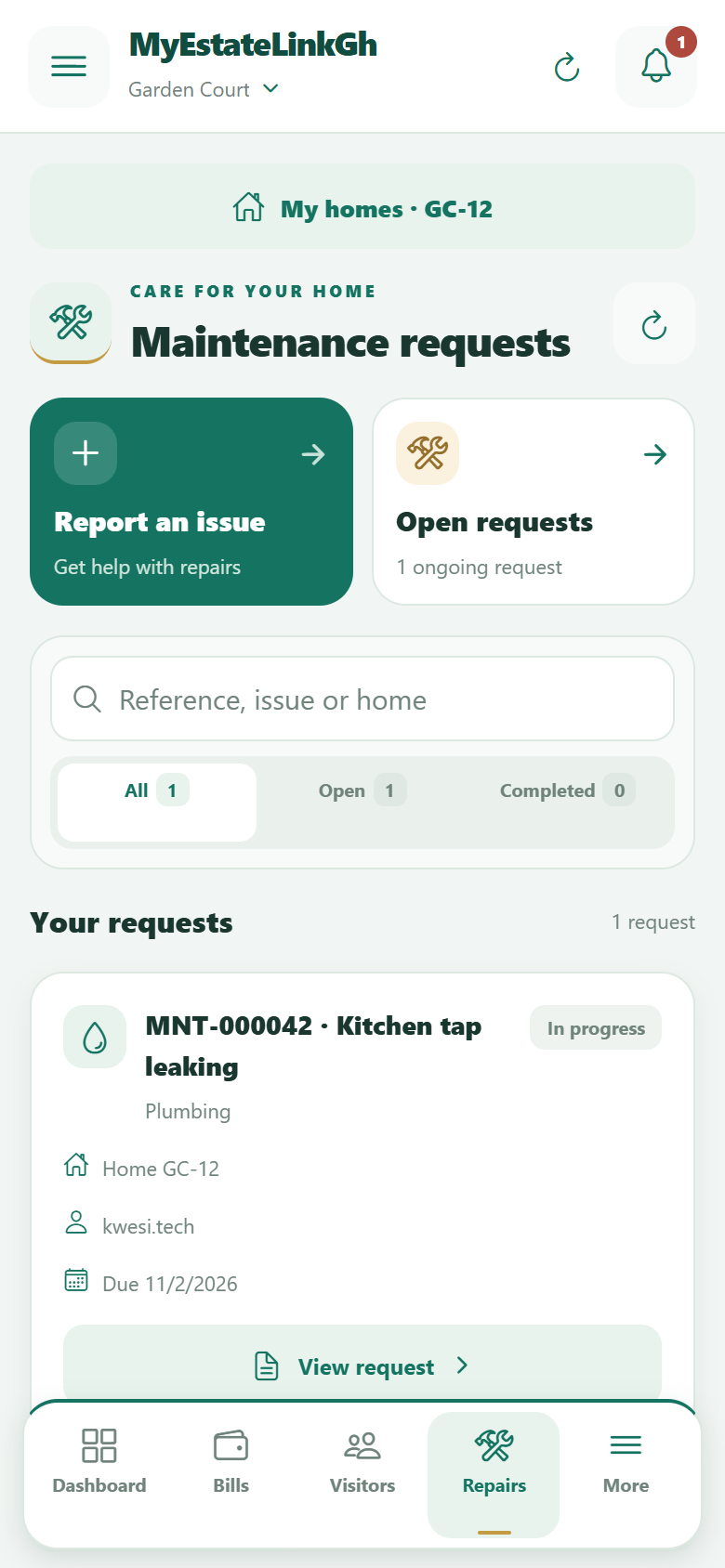
- Open Maintenance and choose Report an issue.
- Add a clear title, category, location and description. Choose the appropriate priority.
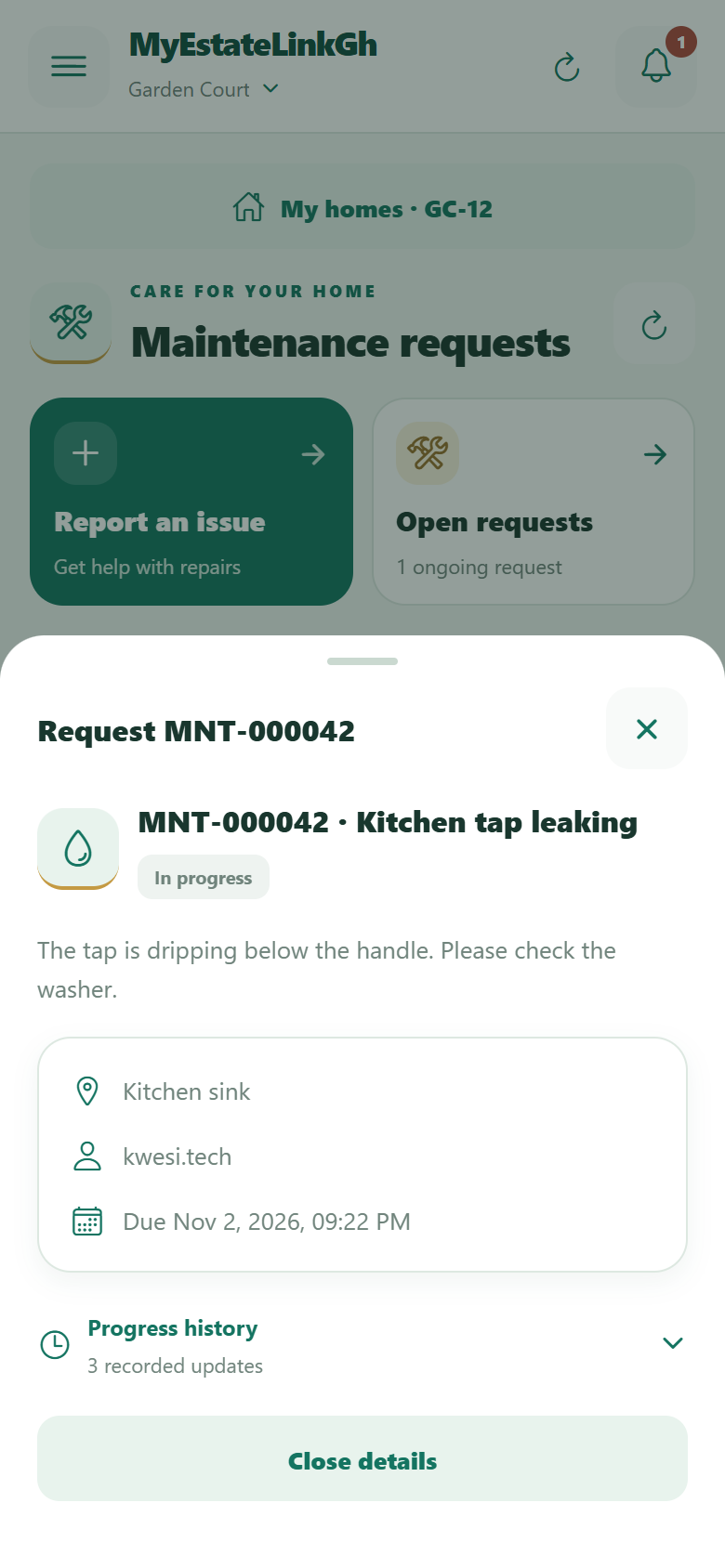
- Open your request later to see its reference, assigned technician, status and progress history.
Resolved means the work has been marked complete. You may be asked to confirm it before it is Closed. If the issue remains, use the available reopen option and explain what still needs attention.
For an emergency, use your community’s emergency contact process. A maintenance report does not guarantee an immediate response.
 Enlarge screenshot
 Enlarge screenshot
08. Clear bills & payment records
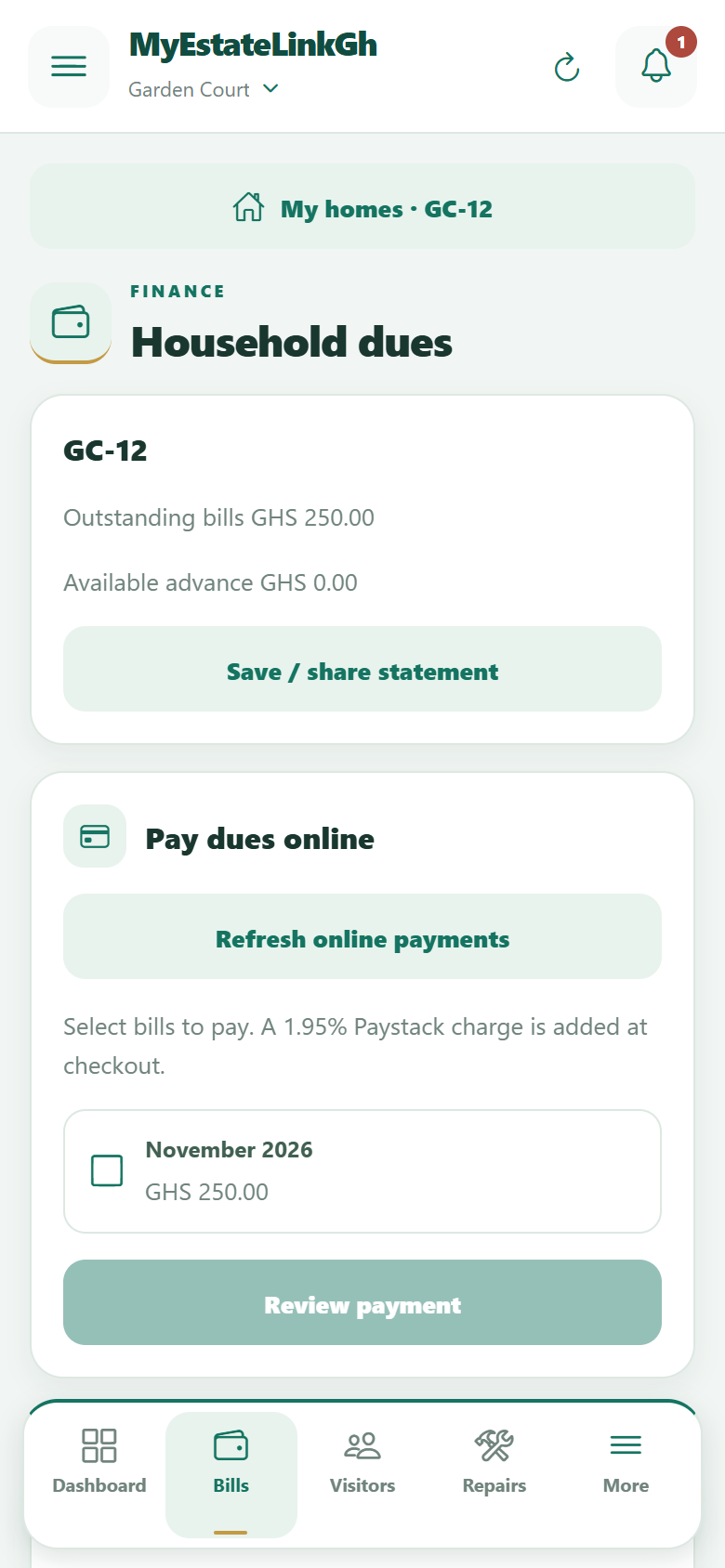
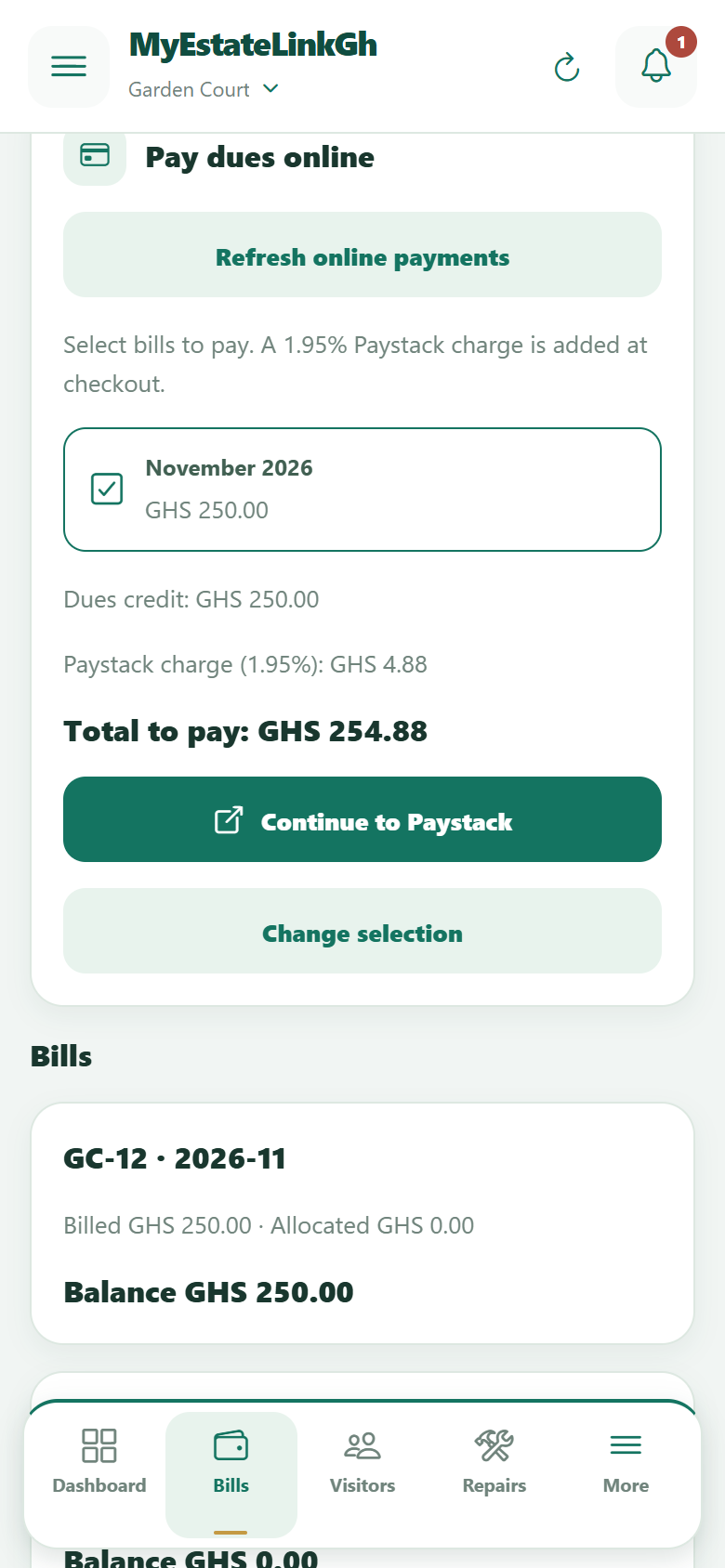
In Finance / Household dues, see your selected home’s bills, payments, outstanding balance and any advance credit. You can save or share statements and receipts in the available formats.
If online payments are enabled, select the bills you want to pay, choose Review payment and check the dues, Paystack charge and total. Continue to Paystack to pay, then return and choose Check payment status.
The charge is shown separately. Only the dues amount is credited to your household account. Don’t start another checkout while a payment is awaiting confirmation; check its status or resume it first.
Contact community accounts to record cash, MoMo or bank payments, or to query a bill or correction. Payment options depend on your community.
 Enlarge screenshot
 Enlarge screenshot
09. Staying for a little while?
Where Short stays is enabled, management or an authorised owner can arrange a guest account for an approved stay. Access follows the booking dates and the community’s rules.
Guests may use selected services such as maintenance and invitations during the stay. Household finances remain private. Ask your host or management about an extension or a returning booking.
10. Updates & a helping hand
The Notifications inbox holds updates for your account. Where phone notifications are configured, you can check their status or register the phone explicitly under My account → Notifications. Device settings and app installation also affect push availability.
Your community management is the first contact for accounts, property links, visitor decisions, bills and maintenance. Ask them about app availability and which services your community offers.
Interested in bringing MyEstateLinkGh to your community?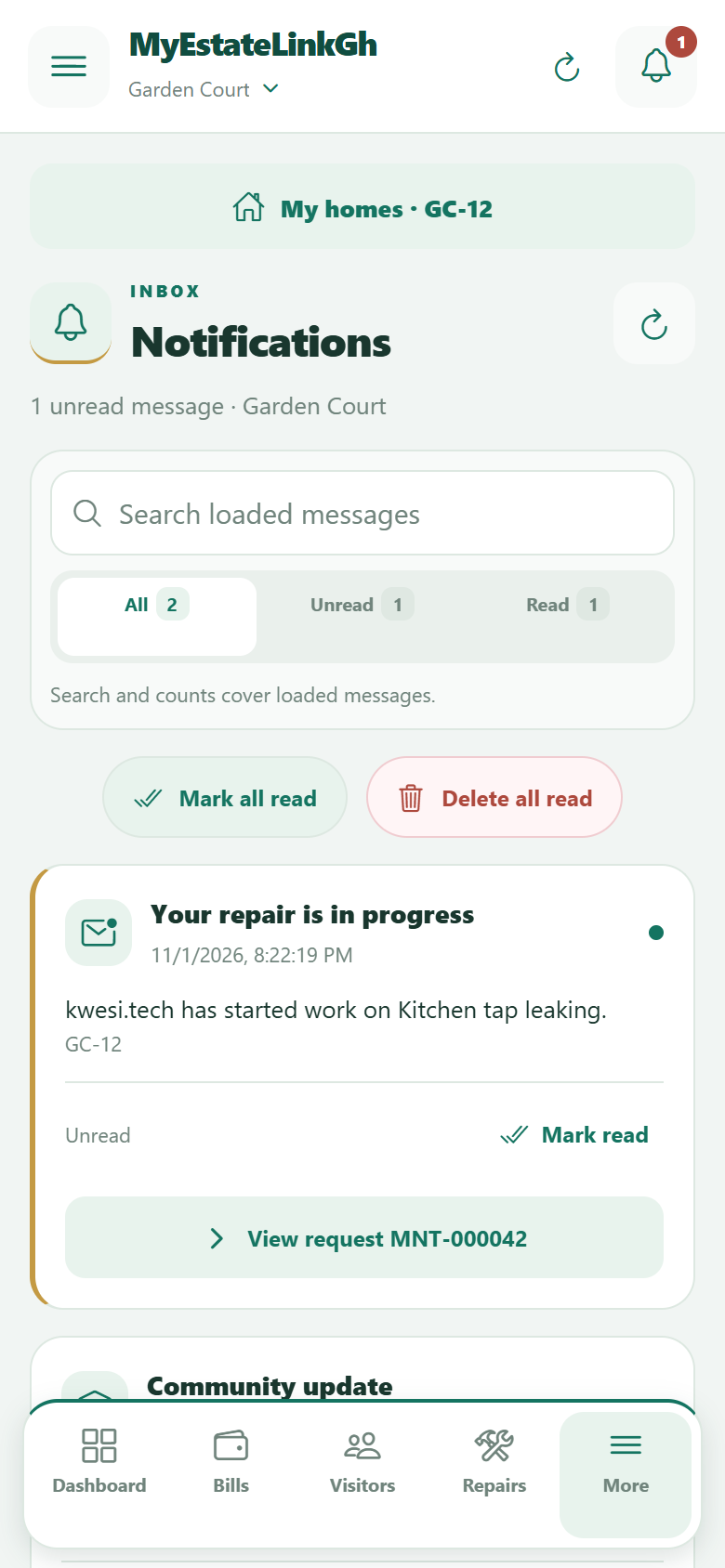 Enlarge screenshot